Sws101_flippedclass5
Topic: Snort

Introduction
Snort is the foremost Open Source Intrusion Prevention System (IPS) in the world. Snort IPS uses a series of rules that help define malicious network activity and uses those rules to find packets that match against them and generate alerts for users.
Interactive Material and VM
Here I have to set up the Virtual machine(VM) for the task-exercise. 
Navigate to the Task-Exercises folder and run the command “./.easy.sh” and write the output  ANS: Too Easy!
Introduction to IDS/IPS

Intrusion Detection System (IDS)
An intrusion detection system (IDS) is a cybersecurity solution that monitors network traffic and events for suspicious behavior. IDS security systems aim to detect intrusions and security breaches so that organizations can swiftly respond to potential threats.
The types of IDS include;
Network-based Intrusion Detection System (NIDS): NIDS monitors the traffic flow from various areas of the network. The aim is to investigate the traffic on the entire subnet. If a signature is identified, an alert is created.
Host-based Intrusion Detection System (HIDS): HIDS monitors the traffic flow from a single endpoint device. The aim is to investigate the traffic on a particular device. If a signature is identified, an alert is created.
Intrusion Prevention System (IPS)
An intrusion prevention system (IPS) is a cybersecurity solution that builds on the capabilities of IDS. IPS cyber security tools cannot only detect potential intrusions but also actively prevent and mitigate them.
There are four main types of IPS systems;
Network-based Intrusion Prevention System (NIPS): A network-based IPS (NIPS) is deployed at strategic points within a computer network, often at network gateways. It can protect the organization’s entire network, including multiple connected hosts and devices.
Behavior-based Intrusion Prevention System (Network Behaviour Analysis - NBA): Behaviour-based systems monitor the traffic flow from various areas of the network. The aim is to protect the traffic on the entire subnet. If a signature is identified, the connection is terminated.
Wireless Intrusion Prevention System (WIPS): WIPS monitors the traffic flow from wireless networks. The aim is to protect the wireless traffic and stop possible attacks launched from there. If a signature is identified, the connection is terminated.
Host-based Intrusion Prevention System (HIPS): HIPS actively protects the traffic flow from a single endpoint device. The aim is to investigate the traffic on a particular device. If a signature is identified, the connection is terminated.
Detection/Prevention Techniques
There are three main detection and prevention techniques used in IDS and IPS solutions; 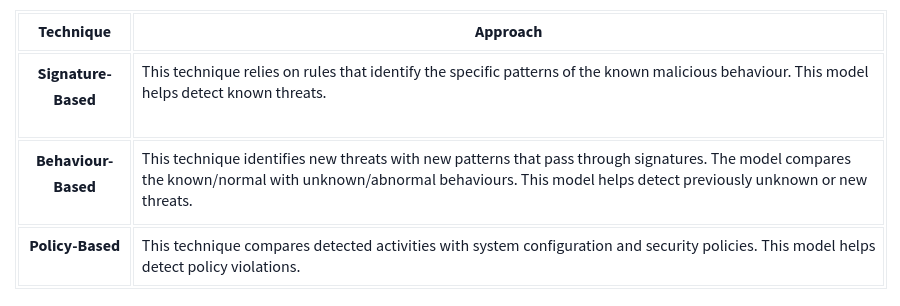
IDS can identify threats but require user assistance to stop them whereas IPS can identify and block the threats with less user assistance at the detection time.
Answer the questions below.
Which snort mode can help you stop the threats on a local machine?
ANS: HIPS
Which snort mode can help you detect threats on a local network?
ANS: NIDS
Which snort mode can help you detect the threats on a local machine?
ANS: HIDS
Which snort mode can help you stop the threats on a local network?
ANS: NIPS
Which snort mode works similar to NIPS mode?
ANS: NBA
According to the official description of the snort, what kind of NIPS is it?
ANS: full-blown
NBA training period is also known as …
ANS: baselining
First Interaction with Snort
First, let’s verify snort is installed. 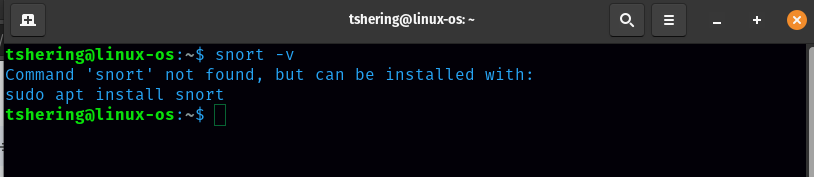
Snort is not installed, so let’s install it. Command to install snort is “sudo apt install snort” 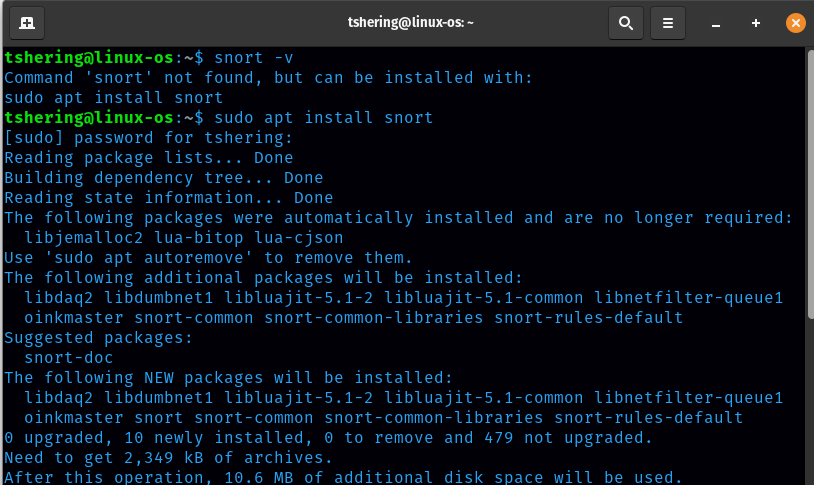
Now lets verify again 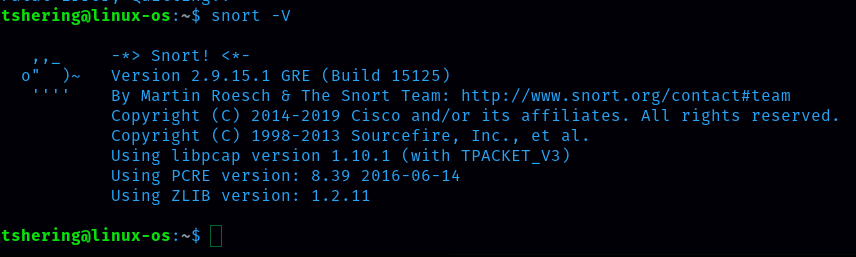
I have successfully installed snort on my machine, but to solve this room I will use the given VM.
Answer the questions below.
Run the Snort instance and check the build number. 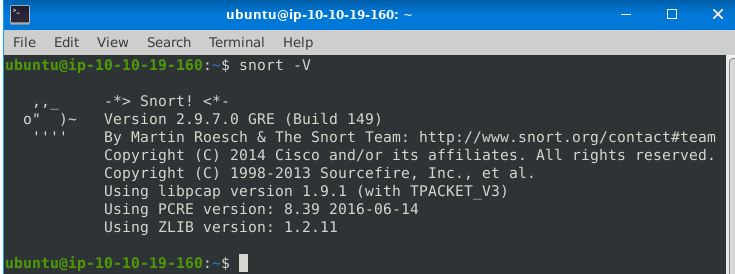
ANS: 149
Test the current instance with “/etc/snort/snort.conf” file and check how many rules are loaded with the current build. 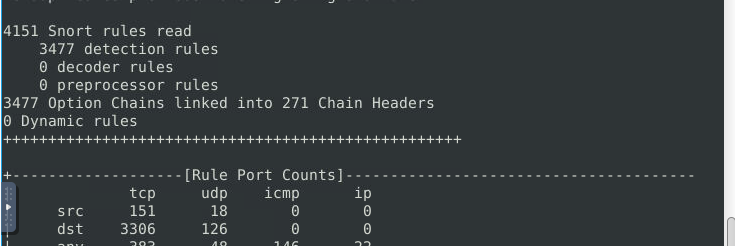
ANS: 4151
Test the current instance with “/etc/snort/snortv2.conf” file and check how many rules are loaded with the current build. 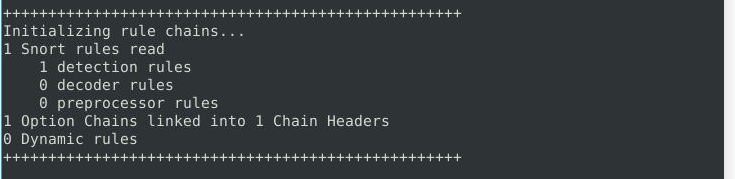
ANS: 1
Operation Mode 1: Sniffer Mode

Sniffer mode parameters are explained in the table below; 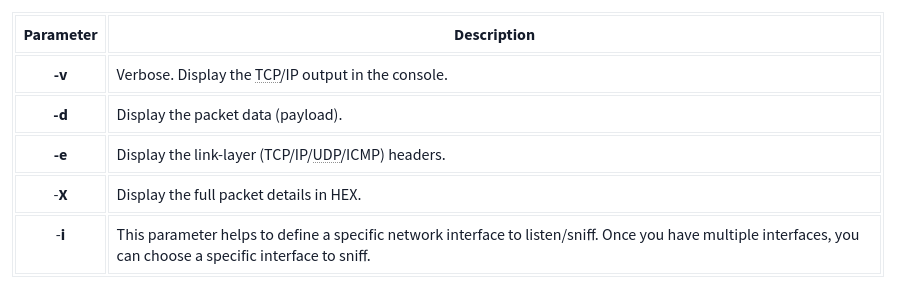
Sniffing with parameter “-i”
Start the Snort instance in verbose mode (-v) and use the interface (-i) “eth0”;
Command: sudo snort -v-i eth0
Sniffing with parameter “-v”
Start the Snort instance in verbose mode (-v);
Command: sudo snort -v
Sniffing with parameter “-d”
Start the Snort instance in dumping packet data mode (-d);
Command: sudo snort -d
Sniffing with parameter “-de”
Start the Snort instance in dump (-d) and link-layer header grabbing (-e) mode;
Command: snort -d -e
Sniffing with parameter “-X”
Start the Snort instance in full packet dump mode (-X);
Command: sudo snort -X
Note that you can use the parameters both in combined and separated form as follows;
- snort -v
- snort -vd
- snort -de
- snort -v -d -e
- snort -X
Operation Mode 2: Packet Logger Mode

Packet logger parameters are explained in the table below; 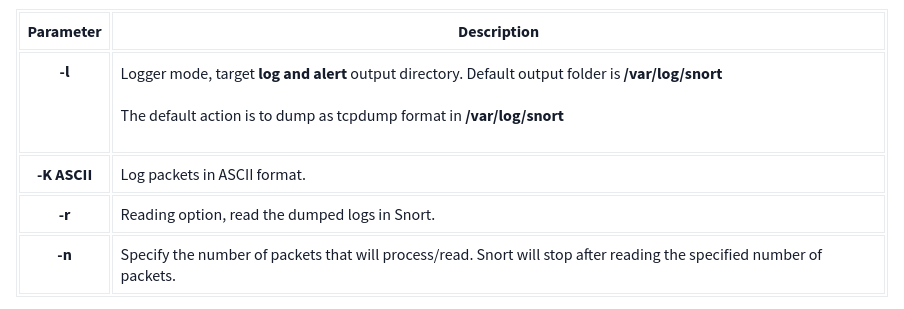
Logfile Ownership
Snort needs superuser (root) rights to sniff the traffic, so once we run the snort with the “sudo” command, the “root” account will own the generated log files. Therefore we will need “root” rights to investigate the log files. One of the approach to switch to the superuser account to examine the generated log files is by using the
Command: sudo su
Logging with parameter “-l”
To start the Snort instance in packet logger mode. Command: sudo snort -dev -l . The -l . part of the command creates the logs in the current directory.
Logging with parameter “-K ASCII”
To start the Snort instance in packet logger mode. Command: sudo snort -dev -K ASCII.
The logs created with “-K ASCII” parameter is entirely different. ASCII mode provides multiple files in human-readable format, so it is possible to read the logs easily by using a text editor.
Reading generated logs with parameter “-r”
To start the Snort instance in packet reader mode. Command: sudo snort -r.
Snort can read and handle the binary-like output. However, if you create logs with “-K ASCII” parameter, Snort will not read them.
Note: use the attached VM and navigate to the Task-Exercises/Exercise-Files/TASK-6 folder to answer the questions!
Answer the questions below.
Use snort.log.1640048004. Read the snort.log file with Snort; what is the IP ID of the 10th packet?
Command: snort -r snort.log.1640048004 -n 10 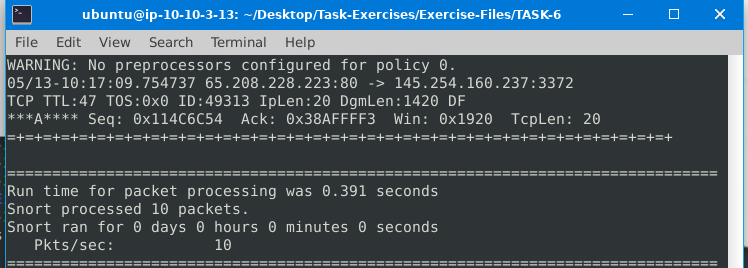
ANS: 49313
Read the “snort.log.1640048004” file with Snort; what is the referer of the 4th packet?
Command: snort -r snort.log.1640048004 -X -n 10 
ANS: http://www.etherreal.com/development.html….
Read the “snort.log.1640048004” file with Snort; what is the Ack number of the 8th packet? 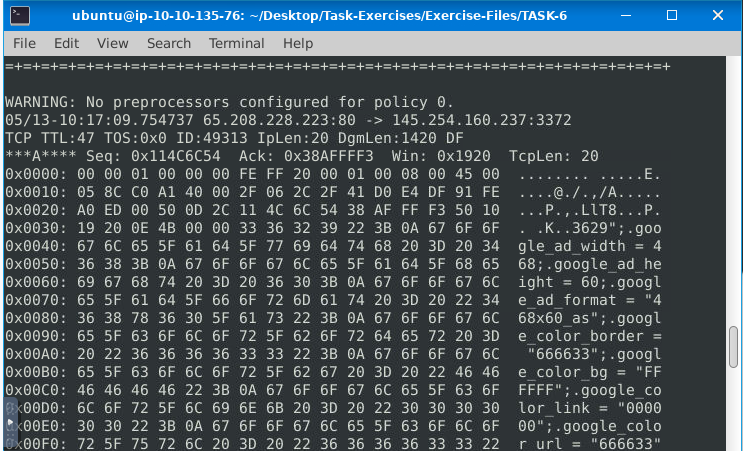
ANS: 0x38AFFFF3
Read the “snort.log.1640048004” file with Snort; what is the number of the “TCP port 80” packets?
Command: sudo snort -r snort.log.1640048004 ‘tcp port 80’ 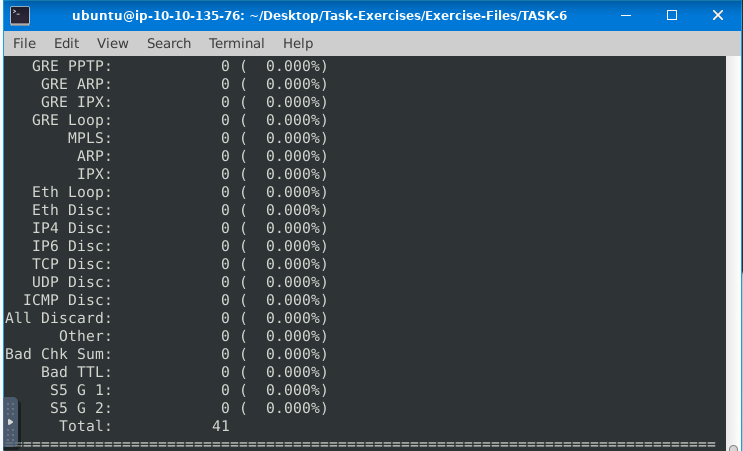
ANS: 41
Operation Mode 3: IDS/IPS

NIDS mode parameters are explained in the table below; 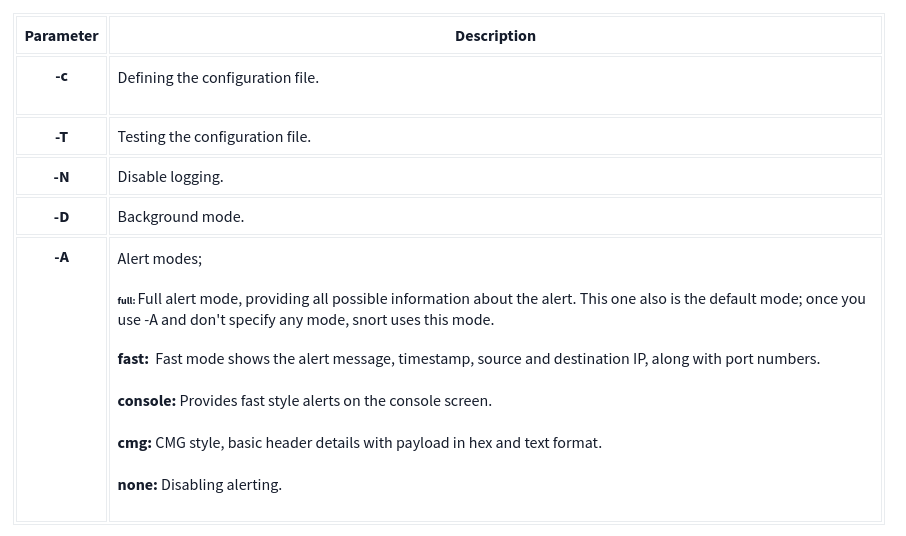
IDS/IPS mode with parameter “-c and -T”
Command: sudo snort -c /etc/snort/snort.conf -T
This command will check your configuration file and prompt it if there is any misconfiguratioın in your current setting.
IDS/IPS mode with parameter “-N”
Command: sudo snort -c /etc/snort/snort.conf -N
This command start the Snort instance and disable logging.
IDS/IPS mode with parameter “-D”
Command: sudo snort -c /etc/snort/snort.conf -D
This command start the Snort instance in background mode
IDS/IPS mode with parameter “-A”
Remember that there are several alert modes available in snort;
- console: Provides fast style alerts on the console screen.
- cmg: Provides basic header details with payload in hex and text format.
- full: Full alert mode, providing all possible information about the alert.
- fast: Fast mode, shows the alert message, timestamp, source and destination = - ıp along with port numbers.
- none: Disabling alerting
IDS/IPS mode with parameter “-A console”
Command: sudo snort -c /etc/snort/snort.conf -A console
Console mode provides fast style alerts on the console screen.
IDS/IPS mode with parameter “-A cmg”
Command: sudo snort -c /etc/snort/snort.conf -A cmg
Cmg mode provides basic header details with payload in hex and text format.
IDS/IPS mode with parameter “-A fast”
Command: sudo snort -c /etc/snort/snort.conf -A fast
Fast mode provides alert messages, timestamps, and source and destination IP addresses. Remember, there is no console output in this mode.
IDS/IPS mode with parameter “-A full”
Command: sudo snort -c /etc/snort/snort.conf -A full
Full alert mode provides all possible information about the alert. Remember, there is no console output in this mode.
IDS/IPS mode with parameter “-A none”
Command: sudo snort -c /etc/snort/snort.conf -A none
This mode doesn’t create the alert file. However, it still logs the traffic and creates a log file in binary dump format. Remember, there is no console output in this mode.
Answer the questions below.
Investigate the traffic with the default configuration file.
Command: sudo snort -c /etc/snort/snort.conf -A full -l .
Execute the traffic generator script and choose “TASK-7 Exercise”. Wait until the traffic stops, then stop the Snort instance. Now analyse the output summary and answer the question.
Command: sudo ./traffic-generator.sh
What is the number of the detected HTTP GET methods?
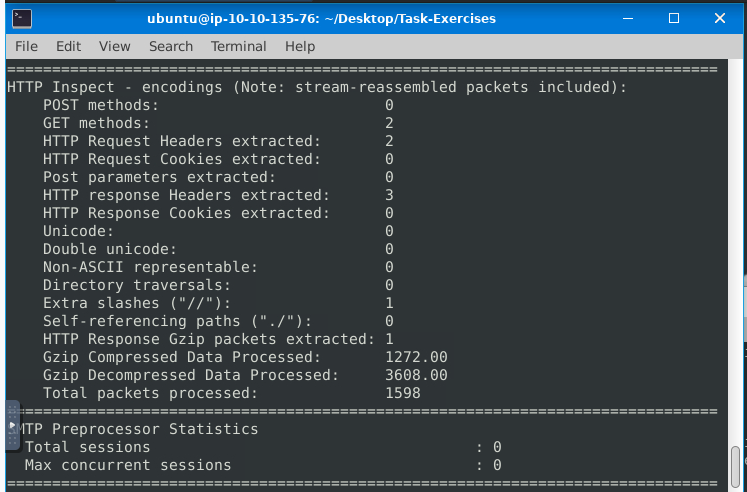
ANS: 2
Timing is important, you should start the sniffing before the attack and terminate right after the attack. Else you will get 0 as the HTTP GET methods value.
Operation Mode 4: PCAP Investigation

Capabilities of Snort are not limited to sniffing, logging and detecting/preventing the threats. PCAP read/investigate mode helps you work with pcap files. Once you have a pcap file and process it with Snort, you will receive default traffic statistics with alerts depending on your ruleset.
PCAP mode parameters are explained in the table below; 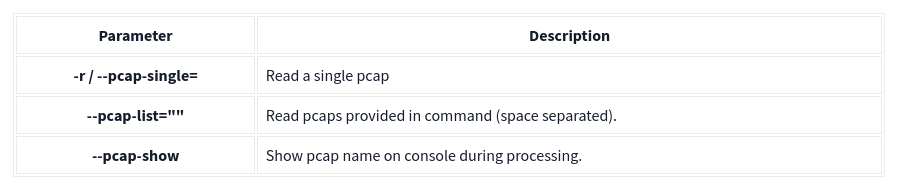
Answer the questions below.
Investigate the mx-1.pcap file with the default configuration file.
Command: sudo snort -c /etc/snort/snort.conf -A full -l . -r mx-1.pcap
What is the number of the generated alerts? 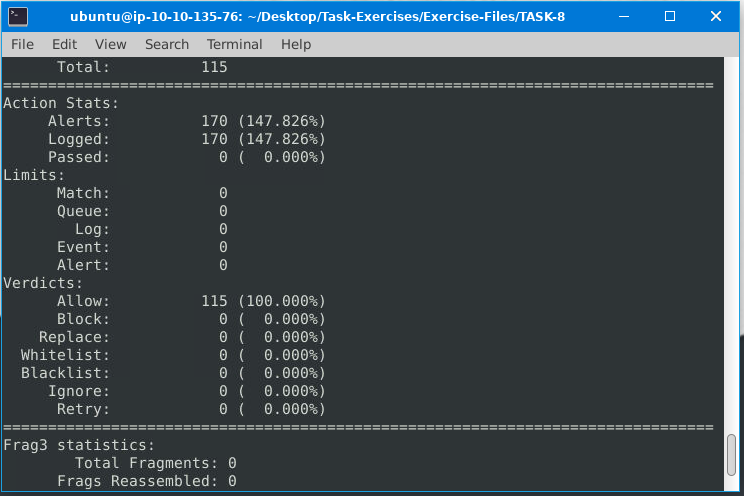
ANS: 170
Keep reading the output. How many TCP Segments are Queued? 
ANS:18
Keep reading the output.How many “HTTP response headers” were extracted? 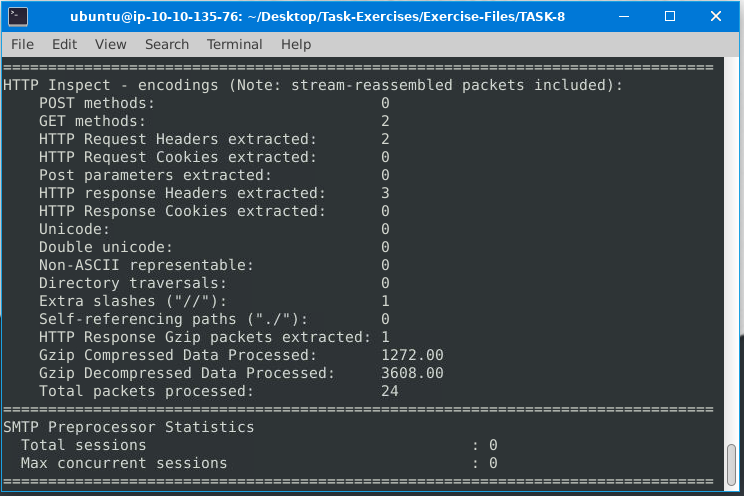
ANS:3
Investigate the mx-1.pcap file with the second configuration file.
Command: sudo snort -c /etc/snort/snortv2.conf -A full -l . -r mx-1.pcap
What is the number of the generated alerts? 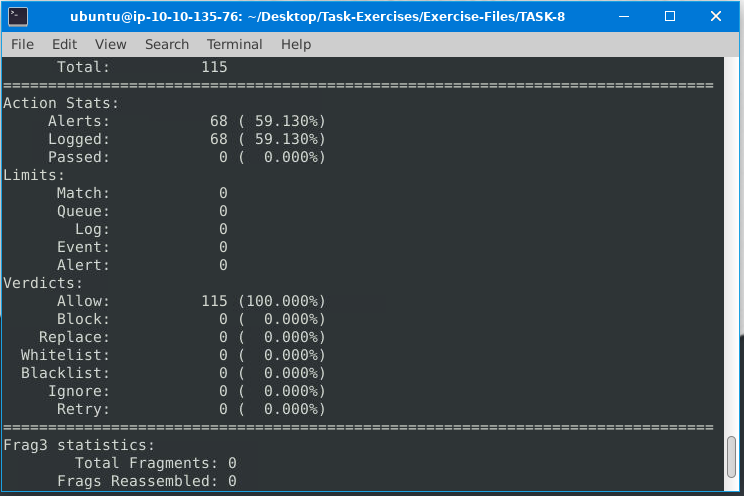
ANS:68
Investigate the mx-2.pcap file with the default configuration file.
Command: sudo snort -c /etc/snort/snort.conf -A full -l . -r mx-2.pcap
What is the number of the generated alerts? 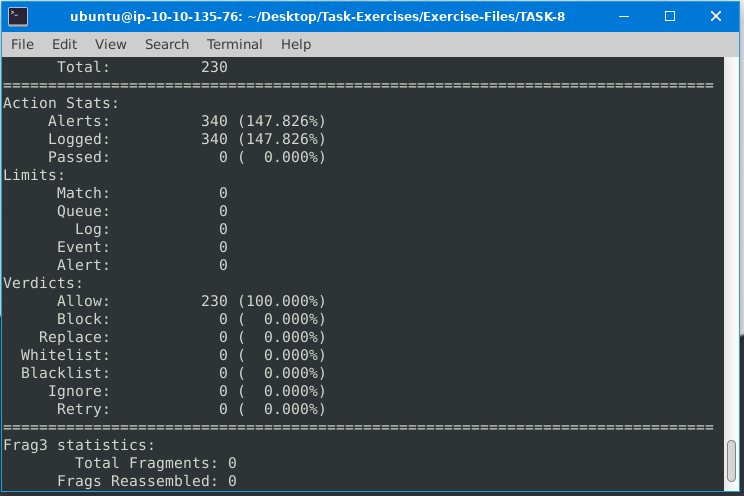
ANS:340
Keep reading the output. What is the number of the detected TCP packets? 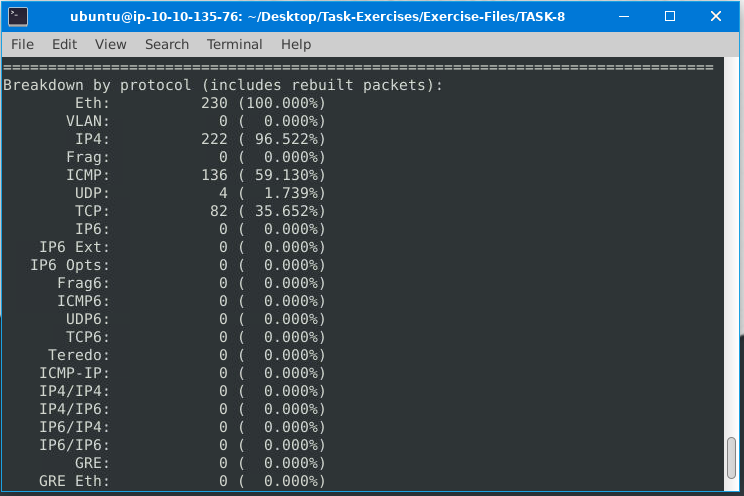
ANS:82
Investigate the mx-2.pcap and mx-3.pcap files with the default configuration file.
Command: sudo snort -c /etc/snort/snort.conf -A full -l . –pcap-list=”mx-2.pcap mx-3.pcap”
What is the number of the generated alerts?
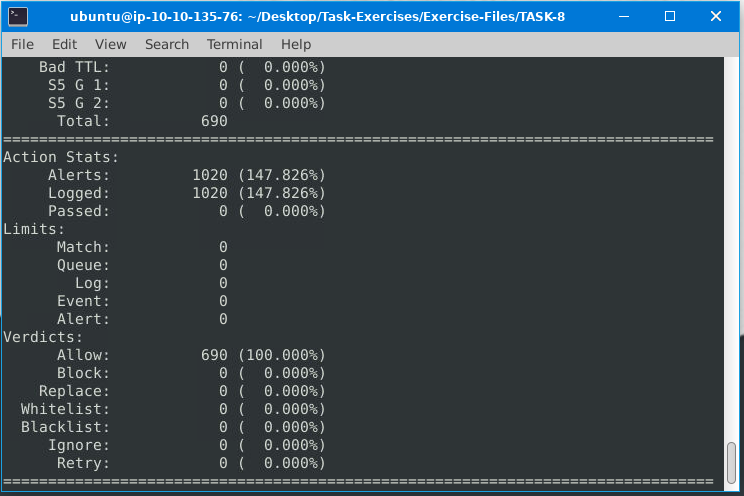
ANS: 1020
Snort Rule Structure

The primary structure of the snort rule is shown below; 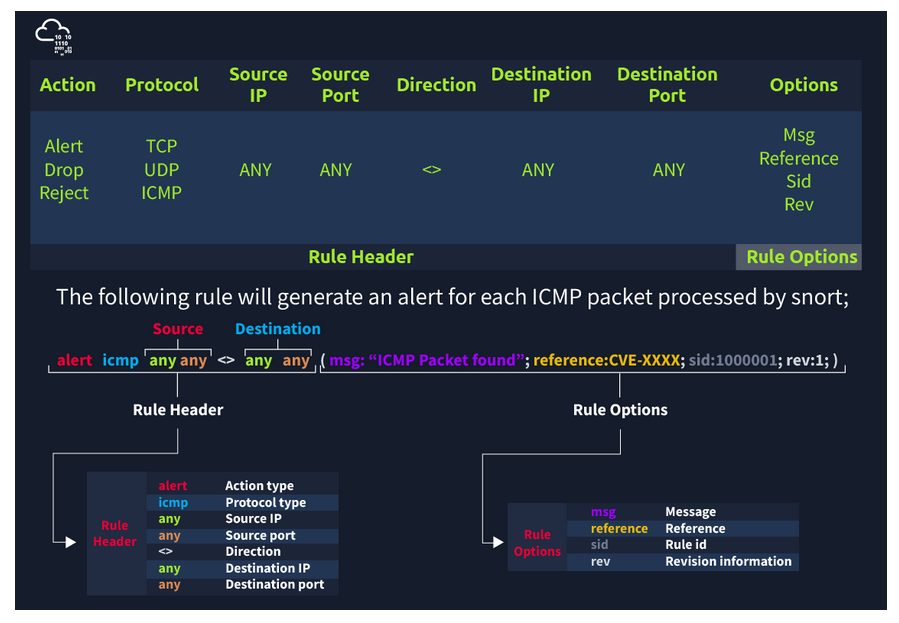
Answer the questions below.
Use “task9.pcap”.
Write a rule to filter IP ID “35369” and run it against the given pcap file.
What is the request name of the detected packet? snort -c local.rules -A full -l . -r task9.pcap 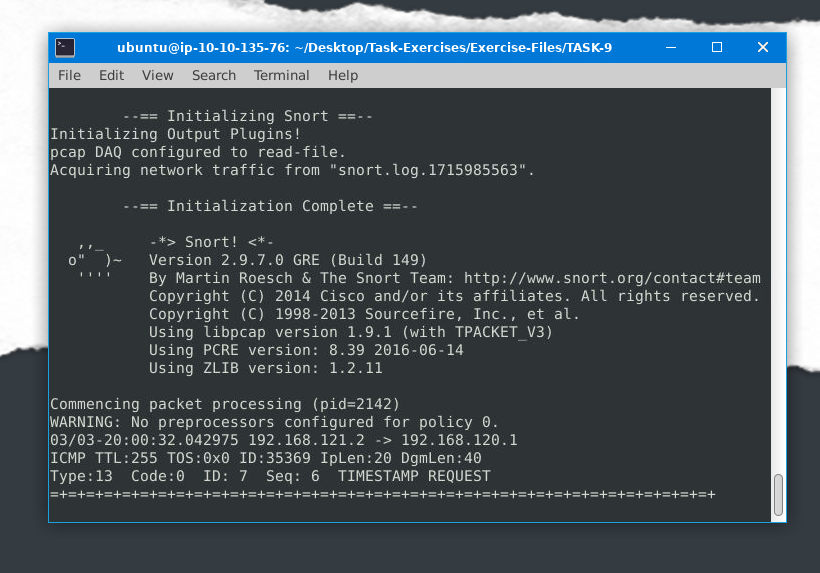
Here, first I have set a rule in local.rules (alert icmp any any <> any any (msg:”Sus IP ID found”; id:35369; sid:1000001; rev:1;)
Command to open local.rules in text editor: sudo gedit local.rules
ANS: TIMESTAMP REQUEST
Create a rule to filter packets with Syn flag and run it against the given pcap file. What is the number of detected packets? 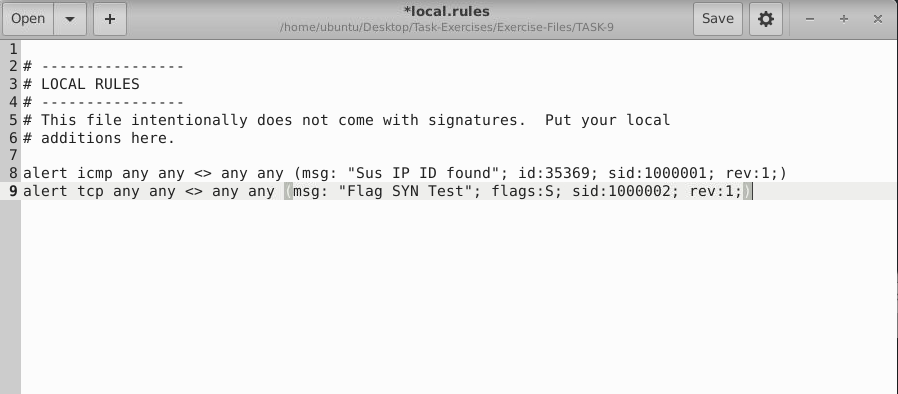 This is how rules is added
ANS: 1
Clear the previous log and alarm files and deactivate/comment out the old rule.
Write a rule to filter packets with Push-Ack flags and run it against the given pcap file. What is the number of detected packets?
ANS: 216
Clear the previous log and alarm files and deactivate/comment out the old rule.
Create a rule to filter packets with the same source and destination IP and run it against the given pcap file. What is the number of packets that show the same source and destination address?
ANS: 7
Case Example - An analyst modified an existing rule successfully. Which rule option must the analyst change after the implementation? 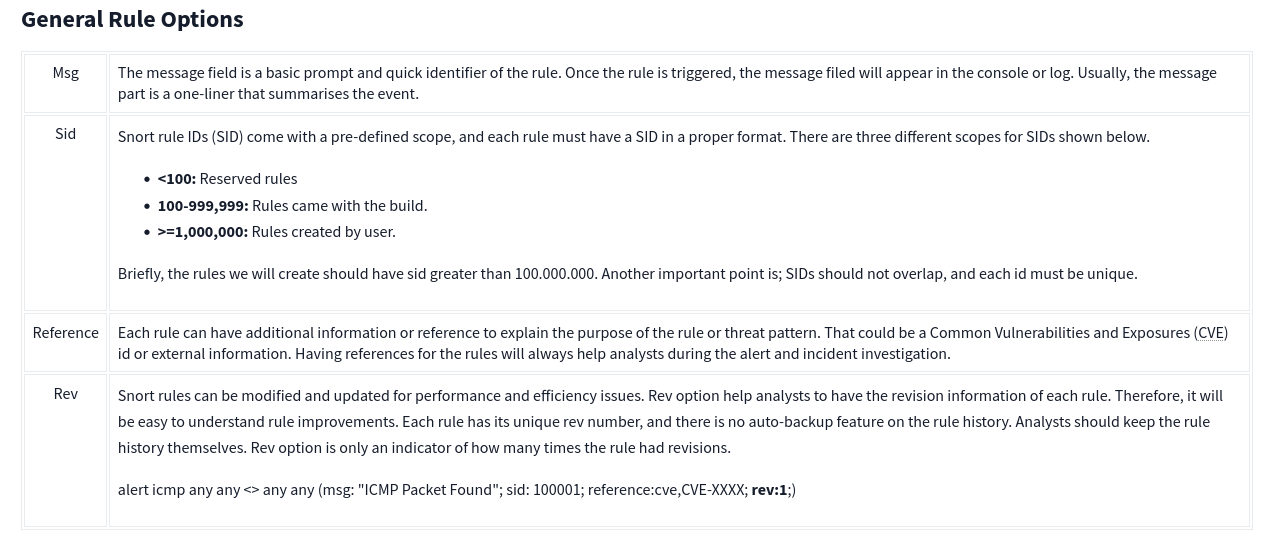 ANS: rev
Conclusion
From this room, I have learned how to use Snort to detect real-time threats, analyze recorded traffic files and identify anomalies. I also knew some of the capabilities of Snort like, live traffic analysis, attack and probe detection, Packet logging, Protocol analysis and real-time alerting. By the way, it was a really though room to complete.